Slack to Teams Migration Guide for IT Admins
Migrating from Slack to Microsoft Teams requires careful planning to preserve conversations, files, channels, users, and permissions. ZuniPixel helps IT admins manage the migration with channel mapping, direct message migration, delta sync, validation, tracking, and detailed reporting.
By Ravi Y, Product Manager·
What migrates:
- Public and private channels
- Direct messages
- One-Time and Delta Migration
- Attachments and Custom Emoji Migration
- Threads, Mentions, and Reactions Preservation
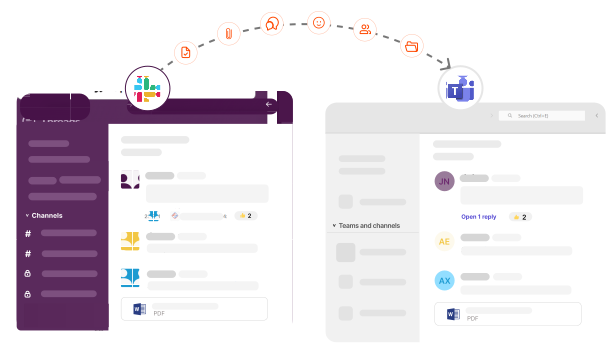
Why organizations are migrating from Slack to Teams
Cost consolidation in the Microsoft ecosystem
License costs often drive the decision to migrate from Slack to Teams . Microsoft offers applications such as OneDrive, Outlook, and Teams on a single platform.
Slack only covers internal communication. Organizations end up paying for two platforms—one for communication and another for file management, email, and everything else—instead of consolidating into Teams, where it all lives in one place.
File organization inside Teams
File organization is another factor behind Slack to Teams migration. Microsoft offers OneDrive, where users can create, view, and edit files and share them via a direct link in Teams channels.
Slack focuses mainly on communication. For files, Slack needs to integrate with apps like Google Drive or other third-party tools to offer similar functionality.
Mergers and acquisitions
Consolidation during mergers and acquisitions also pushes many organizations toward Teams. When one organization already uses Microsoft for internal communication and other applications, and the acquired or merging organization uses Slack, leadership wants to consolidate onto a single platform for better management.
Slack vs. Teams: structural differences IT admins need to know
Slack and Teams have entirely different structures. In Slack, everything is a channel — public, private, or shared. In Teams, channels are part of a Team, so a Team must exist before a channel can. This is the fundamental difference between Slack and Teams structure, and the table below shows the detailed composition that helps explain it further.
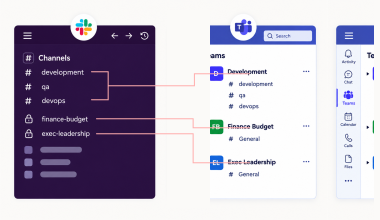
Slack vs. Microsoft Teams structural differences
| Slack Structure | Slack Component | Teams Equivalent | Description |
|---|---|---|---|
| Channels | Private channels | Private channel (within a Team) | Visible only to members who are added |
| Direct Messages | One-to-one DMs | 1:1 Chat | Chat history exists only between the two members involved |
| Direct Messages | Group DMs | Group Chat | All members in the group share the same chat history |
| Native apps | Canvas | Loop or OneNote | Slack Canvas migrates as Loop or OneNote |
| Third-party integrations | Google Drive, JIRA, and other external apps | Same app if it has a Teams integration, or a Microsoft 365-native alternative | Continues working if the app has a Teams marketplace listing; otherwise replaced with a Microsoft 365-native alternative |
| File storage | Slack's own file storage | SharePoint (channel files) and OneDrive (chat/DM files) | Channel files save to the SharePoint Documents folder; DM files save to OneDrive |
The limits of Microsoft's free migration tool
Microsoft's native tool migrates public and private channels to Teams, letting IT admins create a new Team or bring channels into an existing one. But its limitations create real risk for larger migrations:
- No delta migration — once the one-time migration runs, any Slack conversation happening afterward is never captured, leaving the migration only partial
- No automatic rate-limit handling — when Teams API limits are hit, the migration doesn't pause on its own, so IT has to monitor and regulate it manually
- No direct messages or app integrations — these require a separate solution entirely
For a small team looking to save money, the native tool can be a reasonable starting point. Once an organization needs to migrate Slack channels to Teams with the same structure Slack had, it's no longer enough.
Large organizations need a managed migration service for this reason — a dedicated team accounts for every detail, from initial connection through final cutover, rather than leaving IT to catch gaps on its own. ZuniPixel offers this as a managed migration service, and pauses migrations automatically when it hits rate limits rather than requiring manual monitoring.
Microsoft's native tool vs. ZuniPixel
Microsoft's native migration tool vs. ZuniPixel
| Migration Capability | Microsoft Native Tool | ZuniPixel |
|---|---|---|
| Public/private channel migration | ✅ | ✅ |
| Direct messages | ❌ | ✅ |
| Delta migration | ❌ | ✅ |
| Archived channels | ❌ | ✅ |
| User mapping | Auto-map + manual CSV override | Auto-map + CSV mapping requested when needed |
| Multi-workspace support | ❌ (one workspace at a time) | ✅ |
| Pre-migration scan depth | Limited (channel content only) | Comprehensive (users, channels, messages, files) |
| Rate-limit handling | Manual monitoring required | Automatic pause/resume |
| Slack shared channels | ❌ (channel excluded entirely) | Migrates with external users mapped to a dedicated account, guest access added post-migration |
| Text formatting, mentions, standard emoji reactions | ✅ | ✅ |
| Custom emoji | ❌ | ✅ |
| Bots and apps | ❌ | Messages/links migrate as-is; bot or app itself needs reconfiguring |
What migrates from Slack to Teams
Channel mapping and structure
In Microsoft Teams, a Team is a parent that holds one or more channels. Slack channels can map into this structure in a few ways.
- Each Slack channel can become its own Team.
- Multiple public channels can merge into one Team.
- Multiple private channels can merge into one Team.
- Channels can merge into an existing Team.
- Channel descriptions map over to Teams.
- If a channel description contains a link, Teams doesn't support it — ZuniPixel skips the link and keeps the rest of the description intact.
Messages and threads
Messages, replies, and threads migrate exactly as structured in Slack.
Slack's broadcast feature lets a member surface a thread reply to the whole channel, so the same message appears both in the thread and in the main channel — ZuniPixel migrates both instances without duplicating the message.
- Timestamps stay intact throughout.
- Mentions and custom emoji used in messages migrate as-is.
- Emoji reactions on messages migrate as-is.
- Text formatting — bold, italics, strikethrough, and code blocks — carries over to Teams
- Pinned messages migrate and stay pinned in the Teams channel.
Files and external links
- Files migrate along with the messages they're attached to
- External and third-party links included in messages migrate as-is.
- If a Slack channel has a Canvas attached, it migrates to Teams as OneNote or Loop, and the format is customizable to the organization's needs.
User mapping
- Users matched through auto-map or CSV mapping have their messages migrated as-is, under their own name.
- By default, ZuniPixel maps messages from departed users (those with no licensed Teams account) to the admin account.
- Because the admin is often already a member of the same channels, this can create confusion about who's actually posting — so organizations can request a dedicated email account instead, used only for posting messages from departed users.
- Either way, every message still carries a label with the original user's name, so the conversation reads correctly regardless of which account is posting it.
Bots and apps
- Bot messages migrate as-is, but the bot itself needs to be configured in Teams after migration.
- App messages and links — for tools like JIRA and Google Drive — migrate as-is, but the app itself needs to be configured in Teams after migration
Common Slack to Teams migration challenges
The structure mismatch
Slack has a flat structure — public channels and private channels sit side by side. Teams is two-layered: the Team is the parent, and channels sit underneath it. Organizations planning a slack to teams migration need to account for this structural difference before they start.
To address this, ZuniPixel's interface gives organizations options:
- Each Slack channel becomes its own new Team
- Public channels merge into a new Team.
- Private channels merge into a new Team.
- Channels merge into an existing Team.
This helps organizations structure their Teams environment to avoid confusion or clutter after migration.
Permissions on private channels
Since a private channel is part of a Team, merging it in carries a risk — adding members to the parent Team could expose them to a private channel they shouldn't have access to, violating that channel's privacy.
ZuniPixel handles this in three steps:
- All parent-level Team members are added first.
- ZuniPixel retrieves the member list for each private channel separately and adds it only to the corresponding private channel.
- ZuniPixel checks back against the source to confirm no privacy violation has occurred
The platform is built specifically to prevent this from happening in any scenario.
Governance
Teams creates a SharePoint site for every Team; a Team containing both standard and private channels gets an isolated SharePoint site to maintain privacy for the private ones.
Mirroring Slack's structure exactly — a separate Team for every private channel — can look appealing, but becomes a burden for IT admins managing dozens of extra SharePoint sites after migration.
ZuniPixel works with the organization's IT team to identify which channels genuinely need to stay private in Teams, so the final structure is architected around real needs rather than a literal copy of Slack.
This isn't a product feature — it's a benefit of ZuniPixel's managed migration service.
Attachments
When you migrate Slack channels to Teams, some filenames contain characters that Teams doesn't support. ZuniPixel automatically replaces these unsupported characters before migrating the file, keeping the transfer successful and preserving data integrity instead of failing on that file.
Slack shared channels
Slack shared channels can migrate like any other channel, mapped to the corresponding Team. The challenge is external users — since they aren't part of the organization's Microsoft 365 directory, ZuniPixel can't map them individually.
ZuniPixel migrates these conversations by:
- Mapping all external users to one dedicated account in the destination Team
- Letting the organization add external users as guest users after migration
- Allowing the other company to accept the guest invite and log into Teams to continue the conversation directly
Slack Archived channels
Slack doesn't provide a member list for archived channels through its API. ZuniPixel identifies these channels during the pre-scan and migrates them by creating a dedicated Team for all archived channels.
By default, only the admin is added as a member of this Team, unless the organization requests a different team member instead. This keeps archived content accessible for internal auditing without needing to add the original channel members back individually.
Teams channel and member limits [Verified August 2026]
Microsoft updated Teams' channel and member limits in 2026:
- Private and shared channels both count toward the overall 1,000-channel limit per team.
- A private channel can now hold up to 5,000 members, up from the legacy 250-member limit.
- A shared channel can hold up to 5,000 direct members and be shared with a maximum of 50 distinct Teams.
ZuniPixel works within Microsoft's defined limits. If a migration would exceed any of these caps, ZuniPixel identifies it during the mapping stage, helping the IT team restructure channels or memberships before hitting a hard limit.
Direct message challenges
Direct message migration creates two separate challenges.
Challenges:
- Every user must authenticate individually before ZuniPixel can migrate their DM list, messages, and files — and large organizations often have more conversation volume in DMs than in channels, since people use DMs for one-to-one and group conversations outside channel-based work.
- A user who has left the organization can no longer authenticate, and no matching account exists on the Teams side, so there's no way to map their identity.
How ZuniPixel handles it:
- An authentication status tracker shows which users have been emailed and which have authenticated, with the ability to trigger a new request directly from the interface if a user forgets
- Migration planning and initiation can continue in parallel while authentication is still in progress, so it doesn't block the entire timeline.
API rate limits
Migrating from Slack to Teams runs into rate limits from three different sources.
Challenges:
- Reading data from Slack is subject to multiple API tiers, each having its own rate limit, and hitting these limits early in the process can seriously affect the migration timeline.
- Sending messages to Teams has its own rate limit — exceeding it means messages stop posting.
- Sending files to OneDrive and SharePoint has a different limit, and going over it can make Microsoft block all SharePoint or OneDrive traffic for days, which is very harmful during delta migration after users have been told Slack is ending.
How ZuniPixel handles it:
- ZuniPixel's migration engine is built to respect each of Slack's API tiers and their individual rate limits, without affecting migration speed.
- For Teams message limits, the migration pauses briefly when it approaches the threshold, respects the API's response, and resumes automatically.
- The same limit system controls file sending to OneDrive and SharePoint, so it never goes over these limits.
Step-by-step: how the ZuniPixel migration works
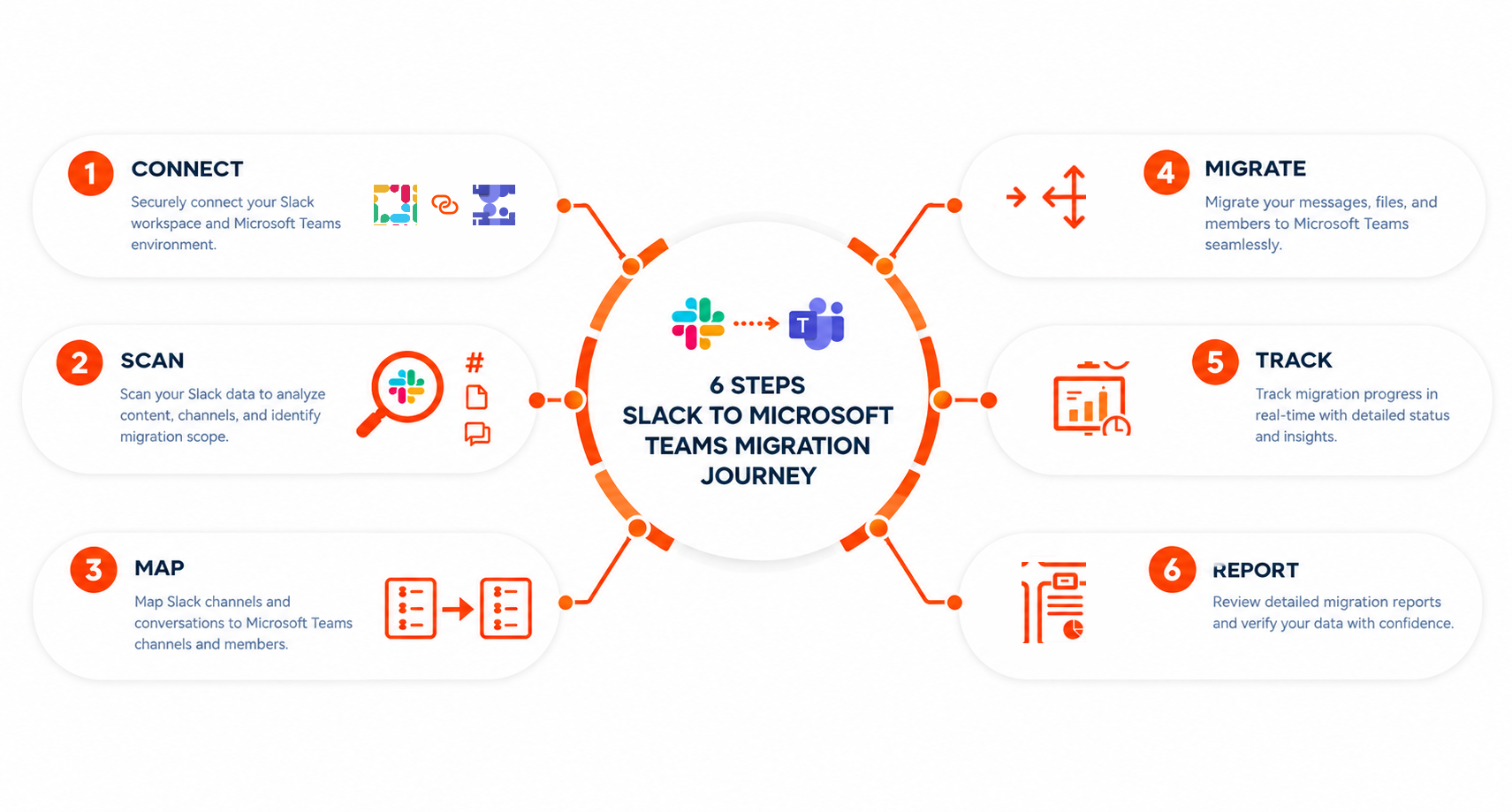
Getting ready to migrate
Connection
ZuniPixel connects to the organization's Slack and Microsoft 365 accounts at the admin level to begin the slack to teams migration process.

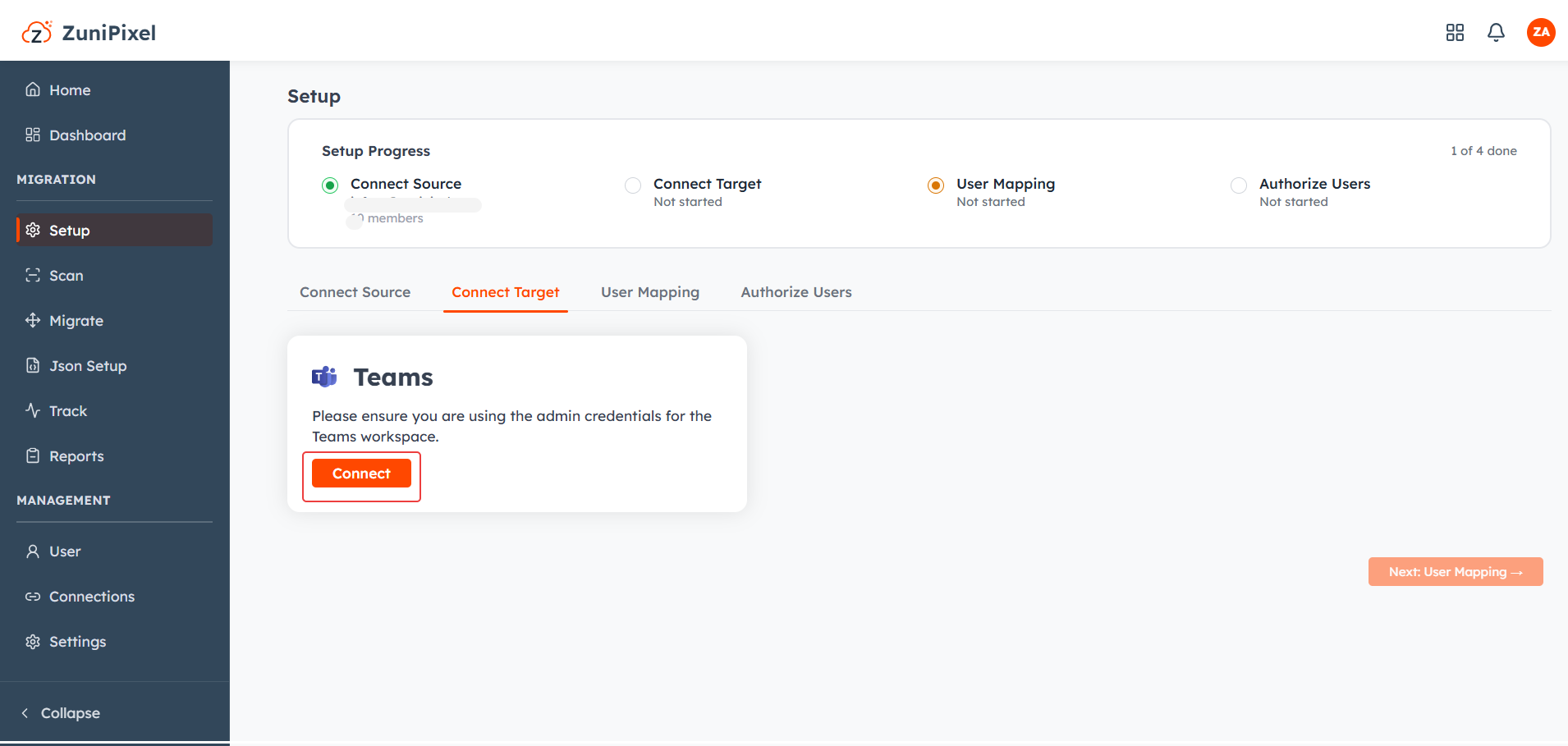
User authentication
- Slack's API only grants access to private channels and DMs where the connecting admin is already a member.
- To get full access to a user's private channels and direct messages, that individual user needs to authenticate and give their own consent.
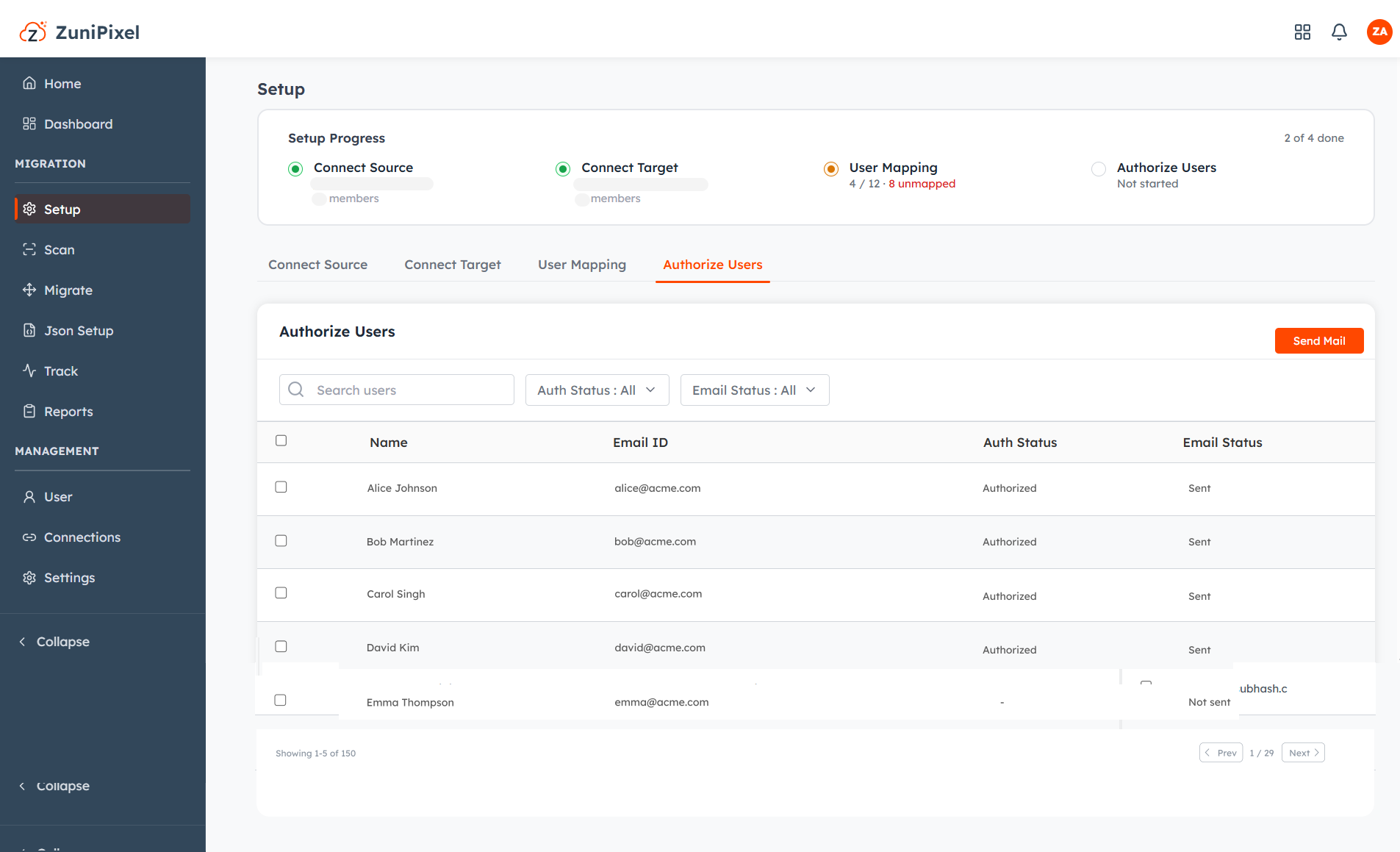
- ZuniPixel sends an authentication email to every user in Slack.
- Each user clicks the link in the email, which redirects them to the Slack login page.
- Once they enter their credentials, ZuniPixel retrieves the private channels and direct messages they were part of
- ZuniPixel's interface tracks which users have received the email and which have completed authentication, and you can export this report.
- If a user needs the email sent again, the IT admin can trigger it directly from the interface.
- Migration planning and initiation can proceed while user authentication is still in progress.
Planning your Slack to Teams migration
Pre-scan
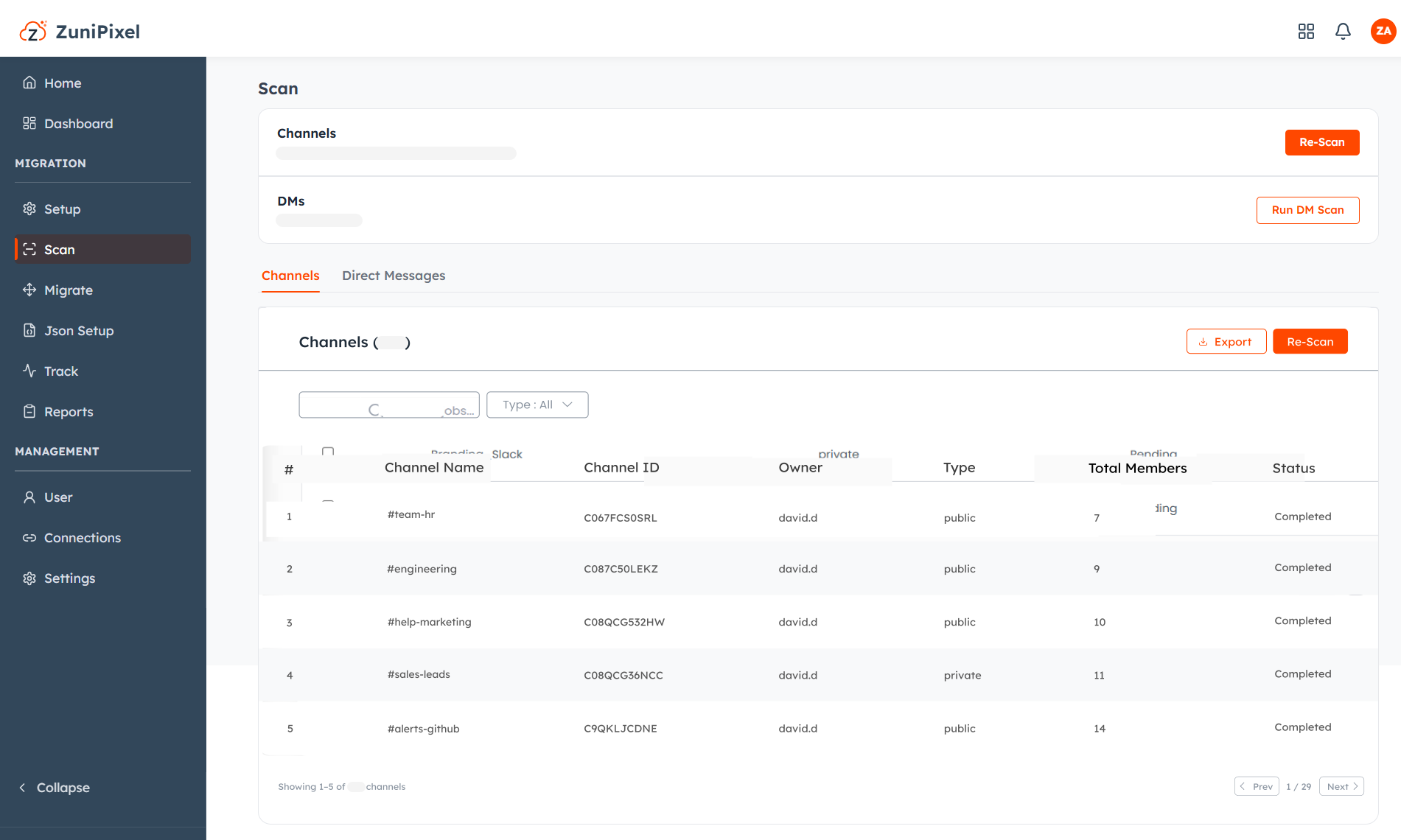
ZuniPixel provides a comprehensive pre-scan report listing every user in Slack and Teams, along with all public, private, and archived channels. For each channel, the report includes:
- Total number of users, with their names and emails
- Total message count
- Total file count
This report gives the IT team and ZuniPixel the details they need to plan the migration well.
Channel mapping and batching
After the pre-scan report is ready, ZuniPixel and the IT admin plan the migration together:
- Channels are prioritized by how many messages and files they have and how active they are.
- Batches are planned to balance high, medium, and low-volume channels.
- The team decides how to move archived channels and set up Teams.
- ZuniPixel explains the structural difference between Slack and Teams during this phase: Slack has a flat structure, while Teams is two-layered, with a Team as the parent and channels as children. Membership also works differently — members are added at the Team level first, and the organization can then restrict access at the channel level.
- By the end of this phase, everyone involved understands the Team setup and batch plan, including how many channels are in each batch and when each batch will happen.
Running the migration
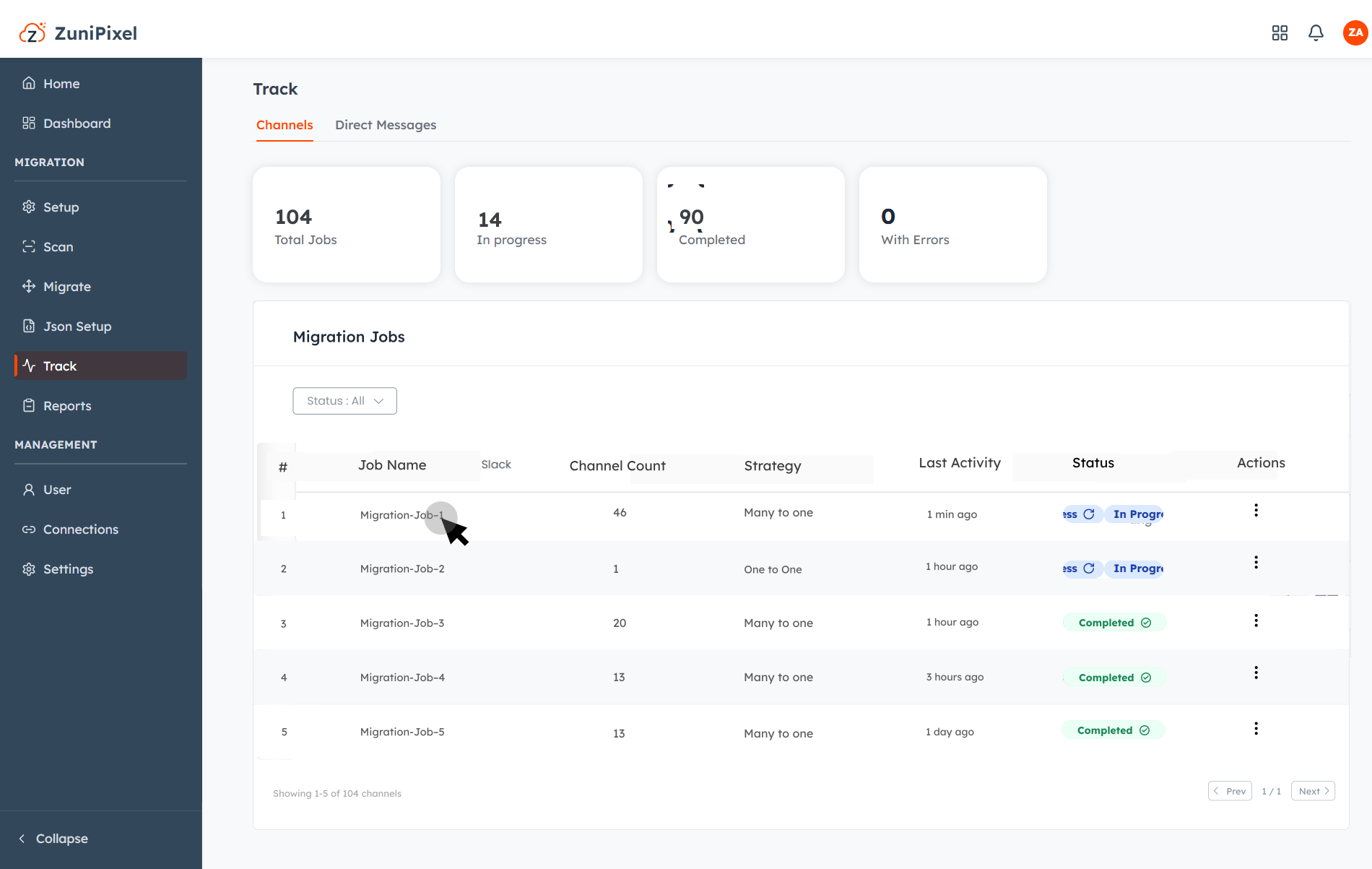
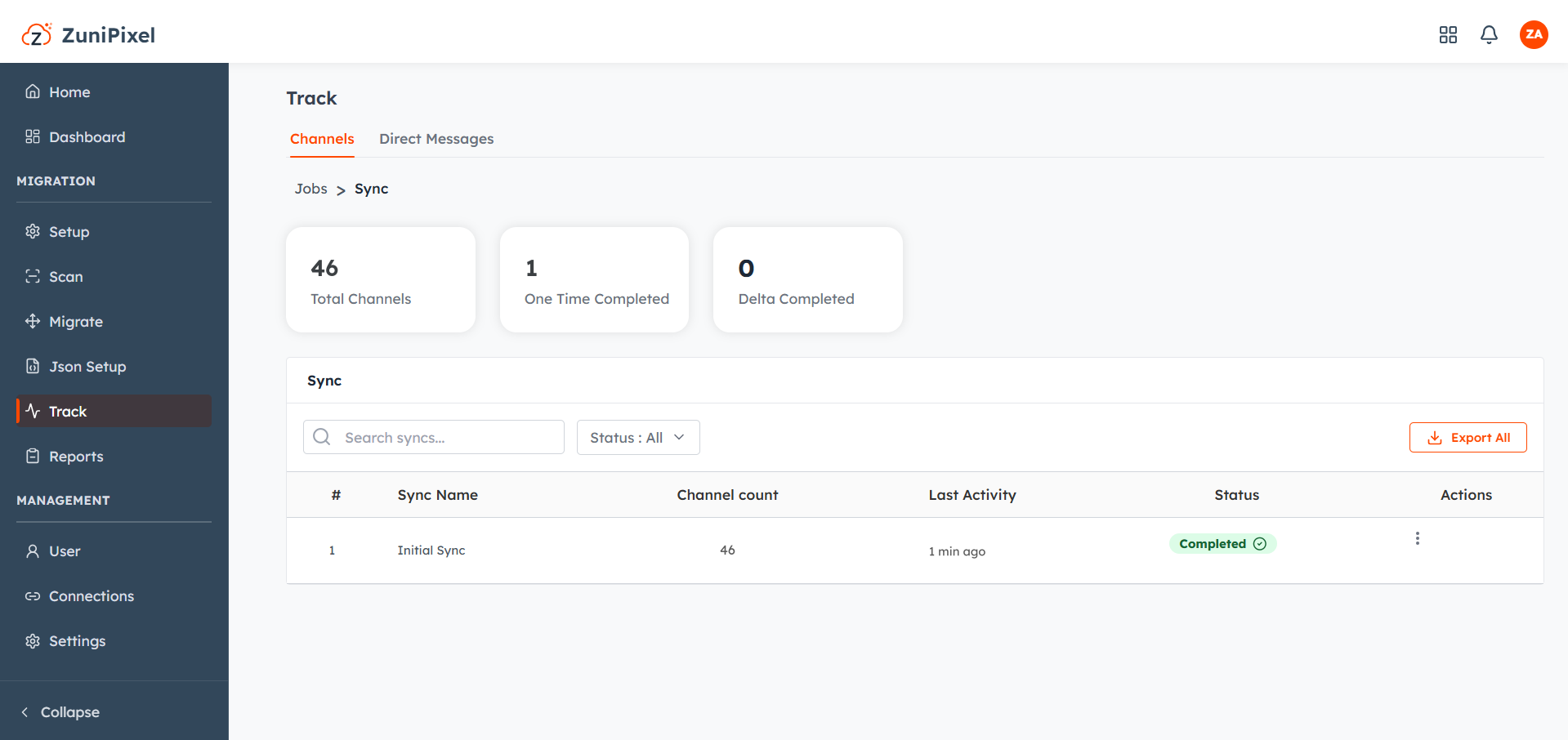
Initial sync
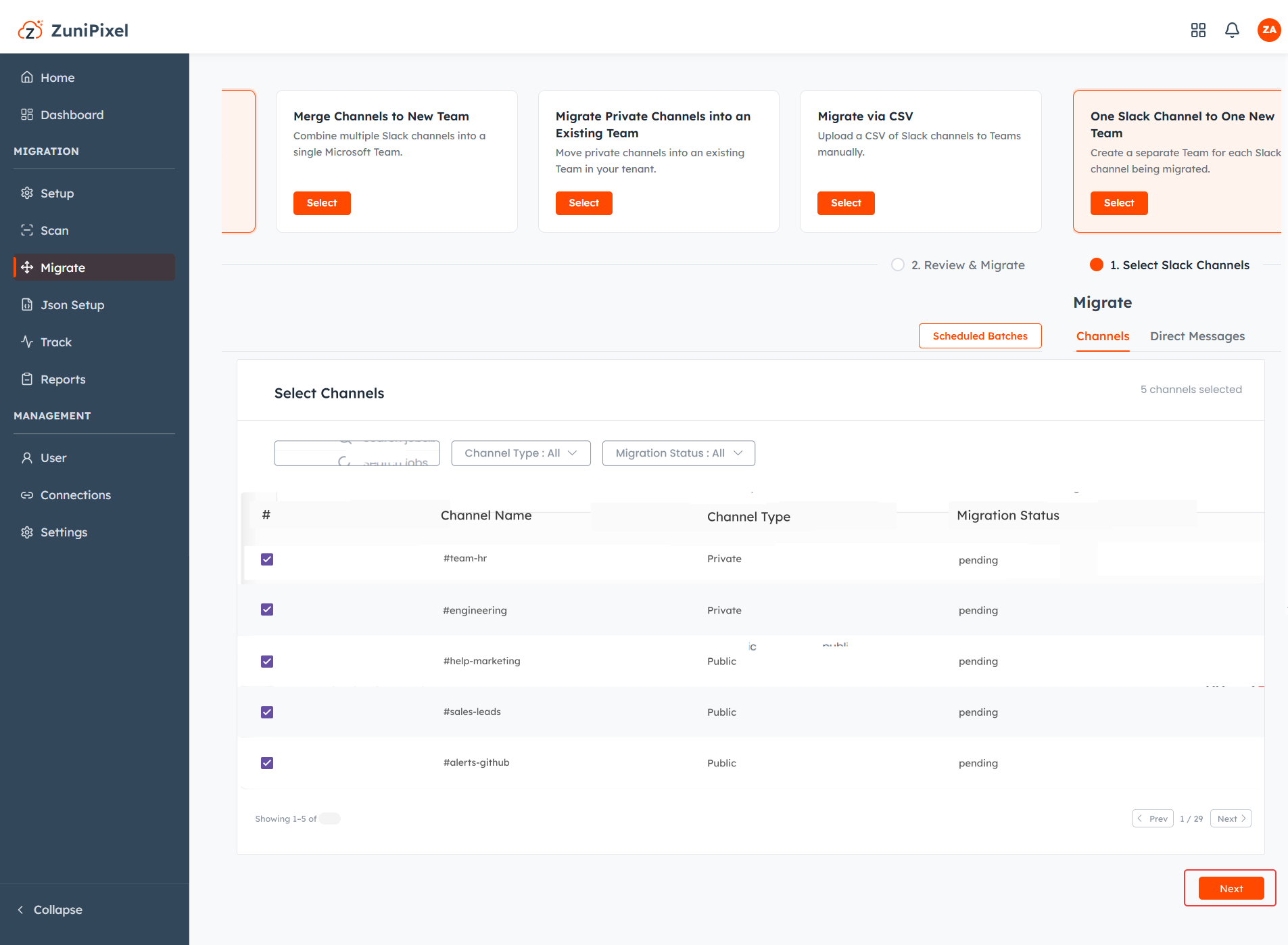
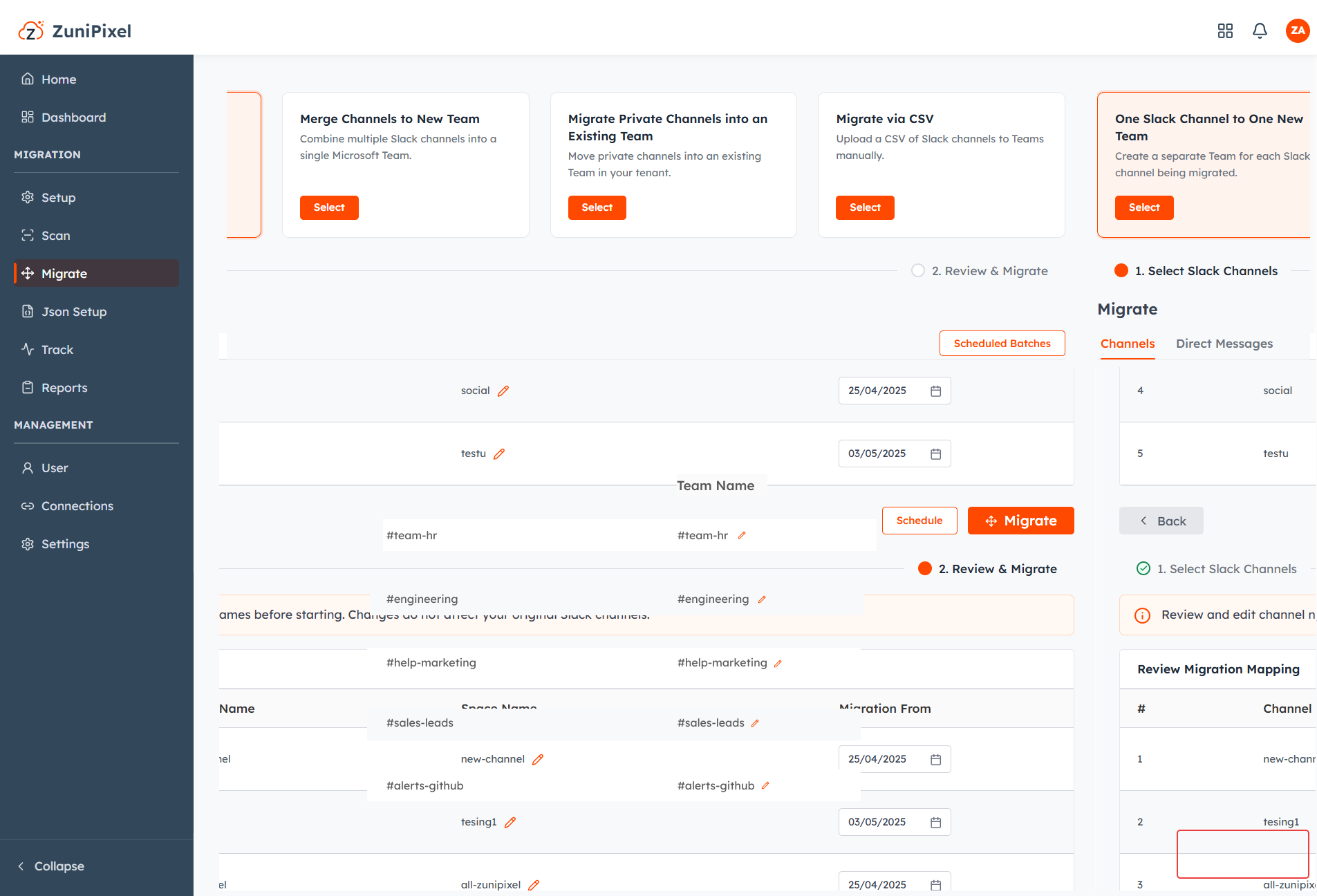
After preparing the batches, ZuniPixel initiates the migration based on the channel mapping agreed on during planning.
- A Migration Job is created for the migration.
- Initial sync migrates the conversation history in each channel, from the beginning up to the date the migration starts.
- Users continue having conversations in Slack while an initial sync is in progress.
Delta sync
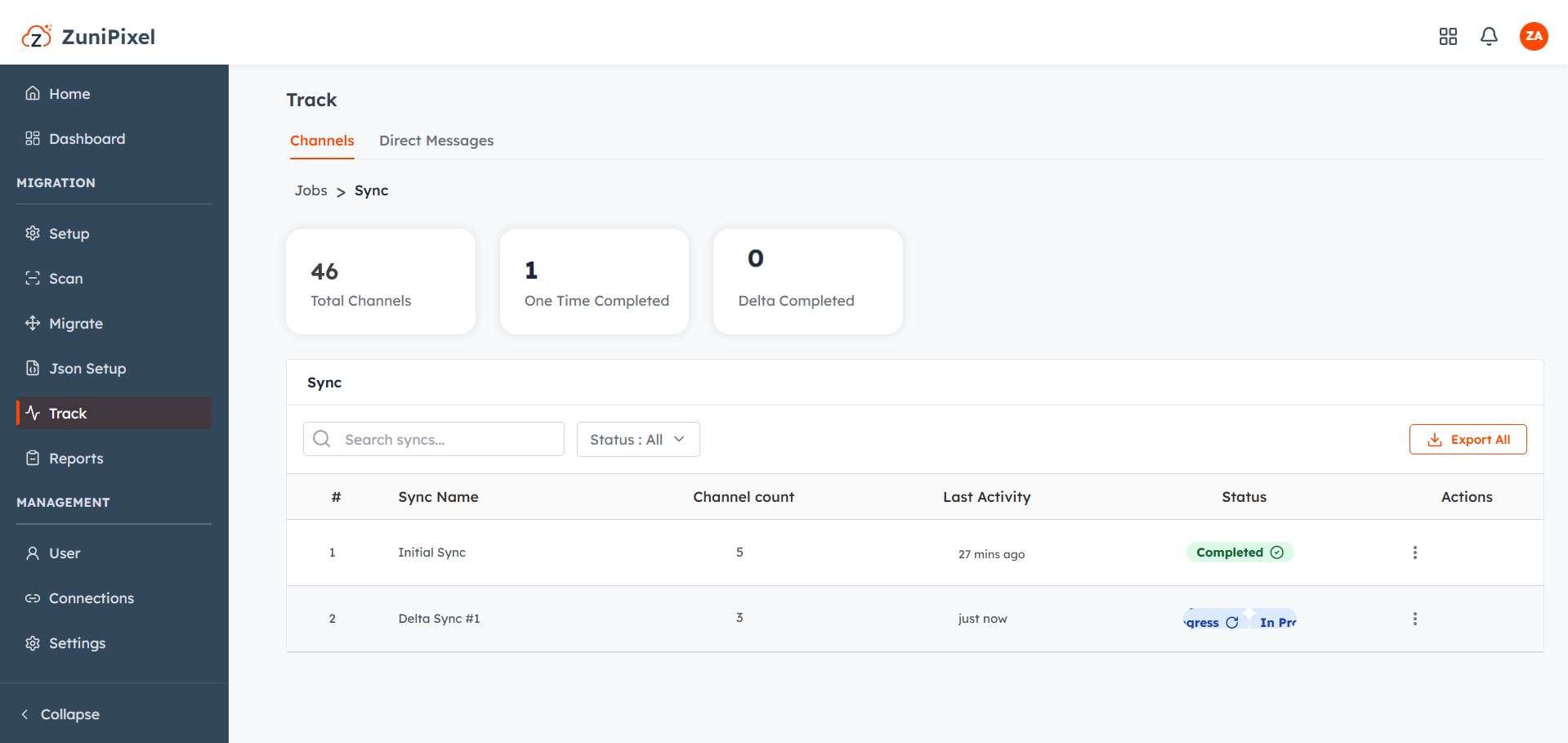
- Delta sync catches up on the gap left by initial sync.
- It identifies and migrates the new messages that accumulated after the initial sync date.
Tracking and reporting
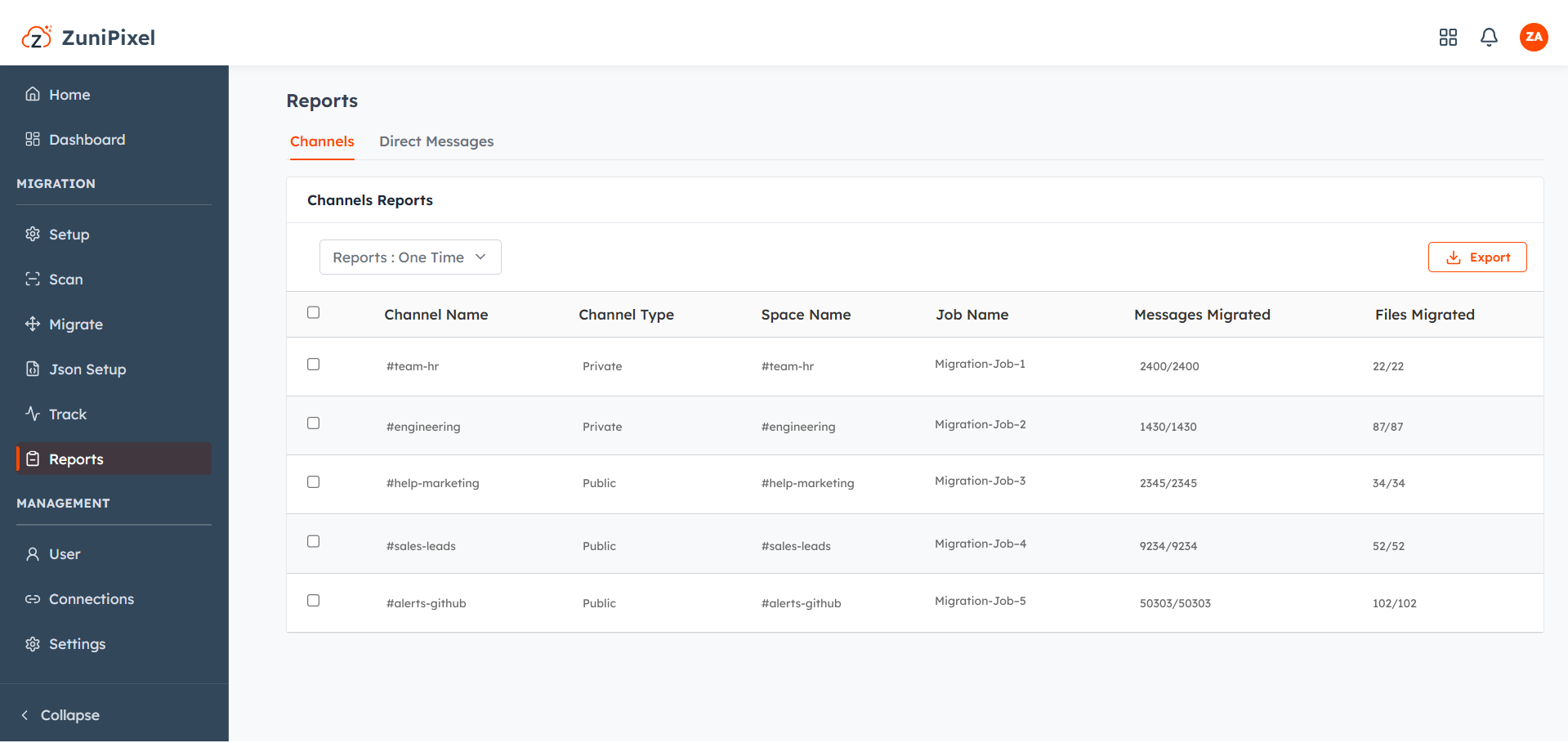
ZuniPixel provides comprehensive reporting at both the job and channel levels, giving IT teams full visibility throughout the Slack to Teams migration. A Migration Dashboard shows a high-level view.
Within a Migration Job, the entire history is trackable:
- When the initial sync started
- Which channels were included
- Total message count
- How many are in progress versus completed (same detail available for delta sync)
ZuniPixel provides comprehensive reporting at both the job level and the channel level. A Migration Dashboard shows a high-level view:
- Total jobs in progress and completed
- Total channels in initial sync (in progress and completed)
- Same breakdown for delta sync
- Same statistics for direct messages, both one-to-one and group
Post-migration activities
Third-party app and workflow re-integration
Migrating conversations to Teams doesn't automatically carry over the apps, integrations, and workflows connected to Slack. IT teams need to handle several things after go-live:
- Webhooks: Developers need to generate fresh webhook URLs and update systems like GitHub and PagerDuty, so system alerts continue reaching the right place in Teams
- Reinstalling apps: IT admins need to install apps like JIRA, Asana, and Zoom in Teams, and ask users to log in and sync their projects from day one
- Rebuilding workflows: Engineers need to rebuild Slack Workflow Builder automations in Teams using Power Automate.
ZuniPixel's pre-scan identifies the apps and Workflow Builder automations in use in Slack, so IT admins know exactly what needs reinstalling or rebuilding before go-live, rather than discovering gaps after the fact.
Decommissioning Slack and post-migration support
IT admins should plan Slack's decommissioning as a gradual process rather than a same-day cutover:
- Archive channels first, once go-live is confirmed stable.
- Cancel Slack's licensing or subscription only after archiving is complete, rather than on go-live day itself.
- Setting up an exclusive support channel for users after migration also helps smooth the transition, giving people a clear place to raise issues as they adjust to Teams.
Teams training for end users is optional and available on request. Beyond training specifically, ZuniPixel supports post-migration activities in every way possible as part of the managed migration service.
Real migration results
A mid-sized financial services organization migrated 100 channels, 1,500 direct and group message threads, and 1,000 files for 70 users from Slack to Teams using ZuniPixel — moving between 100,000 and 150,000 messages in total. The entire migration, from initial connection to go-live, was completed in under a month, with zero data loss.
Security
ZuniPixel encrypts data in transit using TLS 1.3, the current standard for secure data transmission. Data at rest is encrypted using AES-256.
Authentication for both Slack and Microsoft 365 connections uses OAuth 2.0, so ZuniPixel never handles user passwords directly.
Frequently asked questions
Everything you need to know about Slack to Google Chat migration
Ready to migrate Slack to Teams without the risk of lost messages or manual cleanup?
ZuniPixel's managed migration service handles the entire process, from pre-migration scanning to post-migration support.